The fastest way to take a customizable screenshot
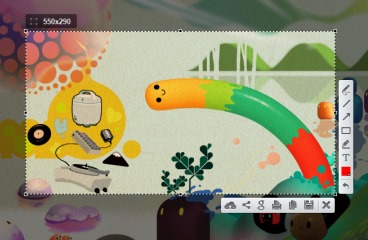
- Fast screenshot of selected area
- Our app allows you to select any area on your desktop and take its screenshot with 2 button-clicks.
- Easy-to-use application
- Simple and intuitive user interface makes your work with the app easier and faster.
- Share screenshots via Internet
- Upload your screenshot to the server and get its short link right away.
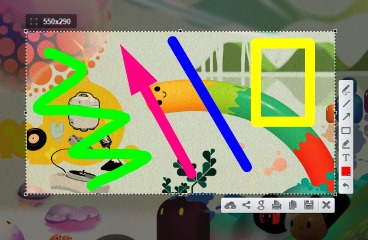
- Powerful editors
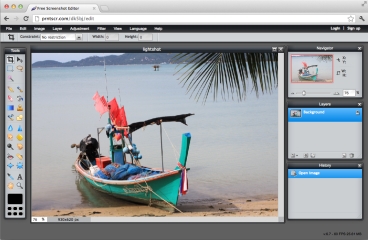
- You can edit screenshots instantly when taking them or later using a powerful online editor.
- Similar image search
- Find similar images. Select any image on your screen and find dozens similar images.
Screenshots
Video
